How to Spot Phishing Emails and Protect Yourself Online
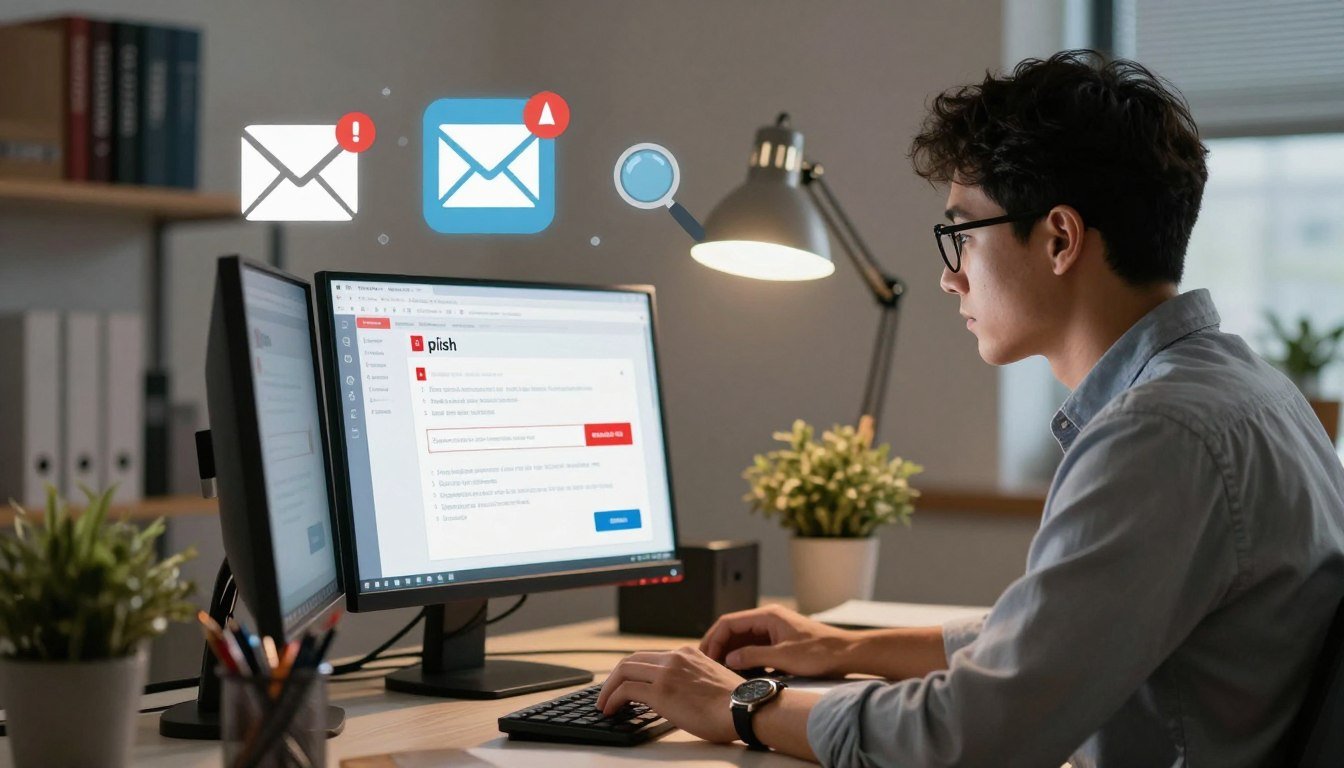
Every day, millions of deceptive messages enter our inboxes and try to steal sensitive data. Learning how to spot phishing emails is vital for modern online safety. These scams may look like real requests from banks, employers, or trusted services.
Attackers use psychological tricks to make you share passwords or financial details. Whether you check a personal account or manage workplace systems, staying alert is your best defense against these digital predators.

This guide offers a clear, step-by-step way to identify threats. It covers warning signs, link checks, and ways to report suspicious activity. These simple habits can secure your digital life and help you browse with greater confidence.
Key Takeaways
- Phishing scams target your passwords, banking information, and personal identity.
- These threats affect everything from workplace networks to everyday mobile apps.
- Attackers often use urgency or fear to trick you into clicking malicious links.
- Verifying the sender’s address is a critical step in maintaining your security.
- Reporting suspicious messages helps protect your community from future attacks.
Why Phishing Emails Are Dangerous
You might think you are too smart to fall for a scam, but modern phishing emails bypass careful defenses. These attacks are more than annoying spam. They are planned efforts to steal your digital identity and financial security.
How phishing scams steal passwords, money, and personal information
At their core, phishing scams seek sensitive data for sale or identity theft. If attackers access your information, the results can be devastating.
- Login Credentials: Stealing usernames and passwords for your primary accounts.
- Financial Theft: Redirecting funds or making unauthorized purchases using your credit card details.
- Personal Data: Collecting Social Security numbers, addresses, and birth dates to open fraudulent accounts in your name.
Why convincing messages can fool careful people
Attackers spend significant time making their messages look legitimate. They copy the branding, logos, and tone of trusted companies, such as banks or shipping services.
By creating a sense of extreme urgency, attackers pressure you to act before you can think. Whether it is a fake “account suspension” notice or a “missed delivery” alert, the message triggers emotion. That response can override your natural caution.
Common targets, including email accounts, banking profiles, and workplace systems
Some accounts are more valuable to hackers than others. Your primary email account is often the “master key” to your digital life. It lets attackers reset passwords for your other services.
Banking profiles are another high-value target because they provide direct access to your liquid assets. Furthermore, phishing scams often target workplace systems and enter corporate networks. This can lead to massive data breaches. Protecting these entry points is essential for overall security.
How to Spot Phishing Emails Before You Click
Protecting your digital life starts with recognizing signs of a malicious message. Learning how to spot phishing emails helps stop attackers before they reach your private data. Knowing common phishing warning signs helps you stay secure.
Check the sender’s full email address, not just the display name
Many people trust the name shown in their inbox. Scammers can change display names to copy trusted brands or contacts. Click or tap the name to reveal the actual sender email address.
Treat it as a suspicious email if it uses random characters or @gmail.com instead of an official company domain. Scammers may use misspellings, such as “support@amaz0n.com” instead of “support@amazon.com,” to fool users.
Look for urgent threats, unusual promises, or emotional pressure
Phishing messages often create panic or excitement to weaken your judgment. One message may claim your account will be deleted within hours. Another may say you won a large prize.
“The most dangerous threats are those that force you to act without thinking, bypassing your natural caution.”
Be wary of messages that demand immediate action or use aggressive language. If a message feels dramatic or too good to be true, it may be a trap. Verify the source before you click.
Identify requests for passwords, payment details, gift cards, or security codes
Legitimate organizations follow strict rules when handling sensitive information. They never ask for your password, credit card number, or two-factor authentication code through an email link.
- Requests for gift cards as a form of payment are a major red flag.
- Demands for login credentials via email links are almost always fraudulent.
- Unexpected requests for security codes should be ignored immediately.
Why legitimate companies rarely ask for sensitive information by email
Reputable businesses protect you by keeping sensitive data off insecure channels like email. Instead, they direct you to their official website or secure mobile app.
When you use their portal independently, you interact with their verified platform. If an email asks for private data, do not reply. Visit the company’s official site directly to check your account status.
Step 1: Inspect the Sender and Message Details
Your first defense against digital fraud starts with a close look at the sender email address. Many people check only the display name, but attackers can fake it easily. Look deeper to spot warning signs before they cause harm.
Compare the sender’s domain with the organization’s official website
Check that the domain name—the part after the “@” symbol—matches the company’s official website. For a bank email, the domain should match the bank’s official web address. Never assume a professional-looking logo or signature proves the sender’s identity.
Recognize look-alike domains, misspellings, and extra words
Attackers often use look-alike domains to trick unsuspecting users. They may swap a letter, add a hyphen, or include extra words. Watch for these common deceptive tactics:
- Typosquatting: Replacing “o” with “0” or “l” with “1”.
- Domain spoofing: Adding extra words like “-support” or “-verify” to a brand name.
- Subdomain tricks: Using a long string of text before the real domain to hide the actual source.
Review the Reply-To address and message headers when available
The “From” address may look correct, while the “Reply-To” address points elsewhere. You can often find this information by clicking the sender’s name to view full header details. If the reply address uses random characters or free webmail, proceed with extreme caution.
Examples of deceptive addresses that imitate banks, delivery services, and employers
Scammers mimic trusted groups to create a false sense of security. These examples show how fake addresses might appear in your inbox:
| Target | Official Domain | Deceptive Example |
|---|---|---|
| Major Bank | bankname.com | bankname-security.net |
| Delivery Service | courier.com | courier-update.co |
| Employer | company.com | company-hr-portal.com |
These simple checks of the sender email address can reduce your risk of falling for look-alike domains. Stay alert and double-check details before interacting with any unexpected message.
Step 2: Evaluate Links, Attachments, and Requests
Cybercriminals often hide traps in buttons and files you expect to use. A message may seem to come from a trusted brand, but its code can send you elsewhere. Checking these elements adds a critical layer to your personal defense strategy.
Hover over links to preview their real destination
Before clicking a button or text link, hover your mouse over it. A small box usually appears in your browser or email client, showing the real web address. If the text says “Log in to your bank,” but the preview shows random characters, you may be seeing malicious links.
Watch for shortened URLs, unexpected redirects, and unfamiliar domains
Scammers often use URL shorteners to hide a link’s true destination. Be wary when a link looks like a jumbled mess of letters. These tools can hide that you are being sent to a fraudulent website, not the official portal.
Handle invoices, documents, and compressed files with caution
Unexpected email attachments often deliver malware. Be especially careful with files labeled invoices, shipping receipts, or urgent legal documents. If you did not request them, do not open them; hidden scripts can compromise your computer.
Never enter login details after following an unsolicited email link
The most important rule is simple: never enter your username or password after clicking an email link. Instead, type the official address into your browser and visit the service manually. This habit helps ensure you use the real site, not a clever imitation.
Step 3: Verify the Message Through a Separate Channel
When you receive an unexpected message, the safest path is to verify it through a separate channel. Relying only on an email can put your account security at risk. Take a few extra moments to confirm the request and avoid clever traps.
Contact the organization using its official website or phone number
If a message claims to come from a bank or service provider, do not use its contact details. Visit the company’s official website by typing its address into your browser. Check the back of your debit card or a recent paper statement for a verified phone number.
- Always use official support channels.
- Avoid clicking phone numbers listed in suspicious emails.
- Check for the official “Contact Us” page on the company website.
Open account apps and websites directly instead of using email links
It is always better to navigate to your accounts manually. For a password-change or locked-profile alert, open your banking app or use your browser bookmarks. This habit helps you use the real service, not a fake site built to steal your credentials.
Confirm unusual requests with coworkers, family members, or financial institutions
Sometimes, a scammer will impersonate someone you know or a trusted authority figure. If you receive a strange request for money or sensitive data, contact that person or organization another way. A quick call or text to a known number can confirm the request or protect your account security.
Why replying to a suspicious message does not reliably verify the sender
Many people believe that replying to an email to ask “Is this real?” will help them identify a scammer. Unfortunately, this is not reliable. The attacker may control that mailbox, so they can send a convincing fake confirmation.
Furthermore, some phishing campaigns use automated systems that redirect your replies to other malicious accounts. Never assume that a response from the same email address proves the sender is who they claim to be. Always use independent, verified communication channels to stay safe.
Step 4: Use Email and Account Security Tools
Strong online defenses need more than caution; they also need the right digital tools. Daily use of these tools builds strong account security and helps stop threats before they cause harm.

Turn on spam filters and phishing protection
Most modern email providers include built-in email phishing protection that flags suspicious messages. Turn on these settings in your account dashboard to block junk and dangerous emails. These systems learn common patterns, so they catch many scams.
Enable multifactor authentication on important accounts
Multifactor authentication strongly protects your data. Even if hackers steal your password, they still need a second verification step. Turn it on for banking, email, and social media profiles.
Use a password manager to detect fake login websites
A reliable password manager does more than store your login details. It suggests saved credentials only on the exact, legitimate website. On a fake phishing page, it will not recognize the domain or fill in sensitive information.
Choose authentication methods that resist stolen passwords
Choose security methods that are harder to intercept than standard SMS codes. Dedicated authenticator apps and physical security keys provide stronger multifactor authentication. They keep your login secure even if someone compromises your phone number.
Keep browsers, operating systems, and security software updated
Regular updates help maintain strong account security. Developers release patches that fix weaknesses hackers use to install malware. Keep software current so your password manager and browser have the latest defenses against new threats.
| Security Tool | Primary Benefit | Ease of Use |
|---|---|---|
| Spam Filters | Blocks junk mail | Automatic |
| Password Manager | Prevents credential theft | High |
| Authenticator App | Adds login layer | Medium |
| System Updates | Patches vulnerabilities | High |
Step 5: Report and Safely Delete Phishing Messages
You help keep the internet safe by knowing how to handle a suspicious email. When a message seems wrong, act quickly to protect yourself and others.
Use the phishing-report option in Gmail, Outlook, Apple Mail, or another email service
Most email providers offer tools that let you report phishing attempts in a few clicks. These tools do more than move messages to trash; they alert the provider’s security team.
- Gmail: Click the three-dot menu and select “Report phishing.”
- Outlook: Use the “Report Message” button in the ribbon to flag the item.
- Apple Mail: Look for the “Report Junk” option to notify the system.
Report financial scams to the affected bank, payment provider, or institution
If a message claims to come from your bank or payment service, contact that institution directly. Do not use contact details in the message because they are likely fraudulent.
“Cybersecurity is a shared responsibility, and reporting threats helps protect the entire digital ecosystem for everyone.”
Visit your bank’s official website or verified mobile app to find its fraud reporting department. Reports help the institution block attackers and protect other customers from the same scam.
Forward suspicious messages only according to the organization’s official instructions
Some companies provide email addresses for forwarding a suspicious email for investigation. Use these addresses only when you find them on the company’s official, verified website.
Preserve useful evidence without opening links or attachments
It is crucial to preserve evidence without touching malicious content. Do not click links, download files, or open attachments. These actions can trigger malware or confirm your email address to the attacker.
Instead, keep the message unchanged so security experts can study its headers and source information. These steps help build stronger defenses against future attacks and keep your personal data secure.
Step 6: Respond Quickly If You Clicked a Phishing Link
Discovering you clicked a malicious link is stressful, but you can still protect your accounts if you act fast. The goal is to limit data exposure and stop attackers from gaining access to your digital life.
Disconnect from the page and avoid entering additional information
If you realize you landed on a suspicious website, close the browser tab immediately. Do not type usernames, passwords, or credit card numbers into the site, even if it looks like a real login page.
If you already entered information, stop immediately. Disconnecting your device from the internet can prevent the site from sending more data to the attacker.
Change compromised passwords from a trusted device
Once offline, use a different, secure device to update your credentials. You must change your compromised passwords immediately to lock out unauthorized users.
Choose a unique, strong password for every account. If you use the same password across multiple sites, update those as well to prevent a domino effect of account takeovers.
Revoke unfamiliar sessions and review recent account activity
Check your account settings for active sessions or logged-in devices. If you see a location or device you do not recognize, revoke that access right away.
Review recent activity logs for unauthorized transactions or profile changes. This helps you identify what the attacker might have accessed while you were vulnerable.
When to contact your bank, credit card issuer, employer, or law enforcement
If you suspect financial information was stolen, contact your bank or credit card issuer immediately to freeze your accounts. If you clicked a link sent to your work email, notify your IT department or employer right away. They can then secure the company network.
In cases of identity theft or significant financial loss, file a report with local law enforcement. Keep these reports to help resolve future disputes.
Scan the device and install pending security updates
Run a full system scan using reputable antivirus software to ensure no malware was installed on your computer or phone. Always keep your operating system and applications updated to the latest versions.
These updates often contain critical security patches that protect you from known vulnerabilities. Staying current helps keep your hardware safe from future threats.
Step 7: Protect Your Identity and Finances After a Scam
Discovering you fell victim to phishing scams feels stressful, but quick action helps you regain control. Once you know your information is at risk, act quickly to limit possible damage. Staying calm and organized helps you manage the recovery process.

Monitor bank accounts, credit cards, and online services for suspicious activity
Start by reviewing your recent transactions across all financial platforms. Look for unauthorized charges, even small ones, because scammers often test accounts with minor purchases. Enable real-time transaction alerts in your banking apps to track future activity.
Place fraud alerts or credit freezes with the major credit bureaus
Contact the three major credit bureaus—Equifax, Experian, and TransUnion—for identity theft protection. A free fraud alert makes lenders verify your identity before opening new accounts. A credit freeze blocks access to your credit report and better protects against unauthorized credit applications.
Report identity theft through IdentityTheft.gov
To report phishing or other fraud, use IdentityTheft.gov, the official U.S. government resource. The site creates a personal recovery plan and provides forms for an official report. These steps document the incident, which helps you resolve disputes.
Secure exposed Social Security numbers, payment information, and account credentials
If your compromised passwords or sensitive identifiers were exposed, update them at once on a secure device. Change login credentials for every affected account, and enable multifactor authentication when possible. If your Social Security number was leaked, contact the Social Security Administration to monitor your earnings record for misuse.
| Action Item | Primary Benefit | Urgency Level |
|---|---|---|
| Credit Freeze | Blocks new credit accounts | High |
| Fraud Alert | Requires identity verification | Medium |
| Account Monitoring | Detects unauthorized charges | Immediate |
| Official Reporting | Creates legal documentation | High |
How to Prevent Phishing Across Email, Text, and Social Media
Strong scam prevention strategies should cover your inbox, phone, and social media accounts. Many people focus on email phishing protection, but criminals increasingly use texts and direct messages to bypass security filters.
Apply the same verification habits to text messages and direct messages
Treat every unexpected message as carefully as suspicious phishing emails. Unknown numbers or random social accounts deserve caution. Do not click links or provide personal details.
- Verify the sender’s identity through an official, trusted channel.
- Avoid responding to messages that create a sense of false urgency.
- Check for common red flags like shortened URLs or poor grammar.
Limit personal information shared publicly online
Scammers use social media details to make messages seem more convincing. Sharing less publicly reduces the data attackers can use against you.
Review privacy settings on Facebook, LinkedIn, and Instagram. Be mindful when sharing your phone number, home address, or workplace details. Attackers often use these details to create personalized social engineering attacks.
Train family members, employees, and children to recognize common scam tactics
Effective scam prevention takes teamwork at home and work. Discuss how to spot malicious messages with family and colleagues so everyone stays alert.
Be cautious with fake delivery notices, job offers, tax messages, and account alerts
Attackers often pressure people into making quick decisions. Watch for these common lures:
- Fake Delivery Notices: Claims that a package is held up and requires a “redelivery fee.”
- Job Offers: Unsolicited messages promising high pay for minimal work, often requiring an upfront payment.
- Tax Messages: Urgent warnings about tax debt or refunds that demand immediate action.
- Account Alerts: Notifications claiming your bank or streaming service account has been locked due to suspicious activity.
Always go directly to the official website or app to check your account status. Never trust links in unsolicited text or social media messages.
Build a Simple Phishing-Detection Routine
Building a strong defense against online scams takes a few simple steps. Security habits can lower your risk of falling for fraudulent schemes. Learning how to Spot Phishing Emails helps you stay prepared without becoming paranoid.
Pause before responding to unexpected messages
The best scam prevention strategy is to slow down. Cybercriminals count on quick reactions to alarming news and exciting offers. When an unsolicited message arrives, pause before clicking or replying.
Use the sender, urgency, request, and link checks every time
Use the same checks whenever you review digital messages. Look for common phishing warning signs in every email. Check the sender’s real address, urgent tone, request, and every link.
Save official contact information for banks, employers, retailers, and government agencies
Never trust contact details included in suspicious emails. Save verified phone numbers and website URLs for banks, employers, retailers, and government agencies. If a message seems wrong, contact the organization through its official channel.
Use a short decision checklist when a message demands immediate action
When a message says your account is locked or payment is overdue, use this quick phishing checklist. Verify the situation before taking action.
| Check Point | Red Flag | Safe Action |
|---|---|---|
| Sender Address | Generic or misspelled domain | Verify against official site |
| Tone | High pressure or threats | Pause and verify independently |
| Links | Hidden or shortened URLs | Hover to see the real destination |
| Request | Asking for sensitive data | Contact the company directly |
Conclusion
Protecting your personal data takes care each time you open your inbox. Learning How to Spot Phishing Emails gives you a strong defense against cybercriminals targeting your identity.
You can stop scams by slowing down and checking every unexpected request. Regular habits, such as checking sender addresses and using multifactor authentication, build a strong wall around your digital life.
Prioritizing online safety helps protect your banking, workplace systems, and social media accounts from intruders. Reporting suspicious messages and using a password manager can make a major difference in your long-term security.
Stay alert when urgent messages reach your phone or computer. Your commitment to these simple verification steps helps you stay in control of your private information. Share these practices with your family and coworkers so everyone can stay safe in our connected world.
FAQ
What is the main goal of most phishing emails?
Most phishing scams trick you into revealing sensitive data, such as passwords, payment information, and login credentials. Attackers often target banking profiles at institutions like Chase or Bank of America. They also target workplace systems like Microsoft 365 to access your finances or professional data without permission.
How can I tell if a sender’s address is legitimate or a fake?
Always inspect the sender’s domain carefully instead of trusting the display name. Scammers use look-alike domains with misspellings, like “micros0ft.com” instead of “Microsoft,” or extra words. Check the message headers or Reply-To address to see whether replies reach the official organization.
Why do phishing emails always seem so urgent?
Scammers use urgent language and emotional pressure to make you act without thinking. A fake FedEx notice may claim you missed a delivery, or PayPal may say your account is suspended. These messages push you to click malicious links or open attachments before you can verify the request.
Is it safe to click a link if I just want to see where it goes?
It is generally unsafe to click suspicious email links, even to see where they go. The text may look fine, but the link could be shortened or redirect to a fraudulent site. Instead, hover over it to preview the destination; type your account address directly, or use the official Amazon or Apple app.
Can security tools really protect me if I accidentally click a link?
Yes, the right tools provide a vital safety net. A password manager like 1Password or LastPass will not autofill details on a look-alike domain. Multifactor authentication (MFA) also blocks access when scammers steal passwords, because they still need the second verification step.
What should I do if I’ve already entered my information on a suspicious site?
Act quickly by changing compromised passwords from a trusted device and revoking unfamiliar active sessions. If you shared financial details, contact your bank or credit card issuer immediately, and visit IdentityTheft.gov to report the incident. Consider fraud alerts or credit freezes with major credit bureaus like Equifax or Experian.
How do I report a phishing email when I find one in my inbox?
Most major providers have built-in tools for this. In Gmail, Outlook, or Apple Mail, use the “Report Phishing” option. Reporting these messages helps providers improve spam filters and protects other users from the same phishing emails.
Does phishing only happen through email?
No, use the same caution with social media direct messages and text messages, often called smishing. Be wary of unexpected job offers on LinkedIn, fake tax alerts, or messages on Facebook Messenger. They may ask for personal details or direct you to unfamiliar websites.